FSX 2020 Installation guide
1. Visit the FSX 2020 Support page: https://support.foresightsports.com/support/software/fsx-2020

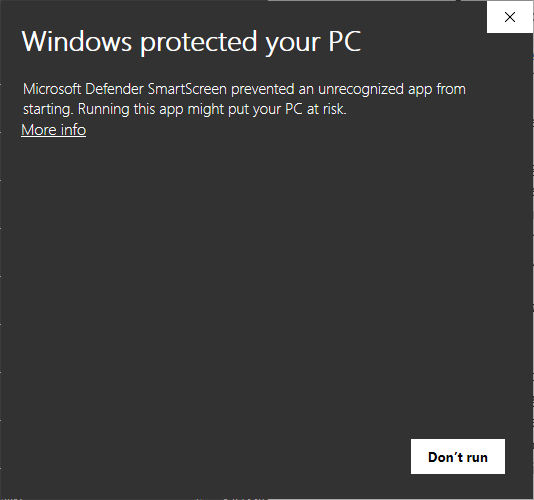
4. If you see the Windows Defender Warning (below). Please click on More Info and select Run Anyway.
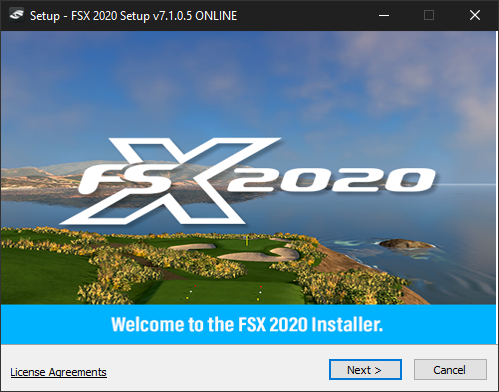
5. At the beginning of the FSX 2020 installation, click Next.
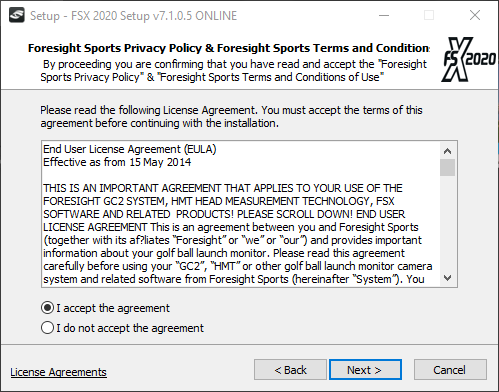
6. Read and/or accept the EULA and click Next.
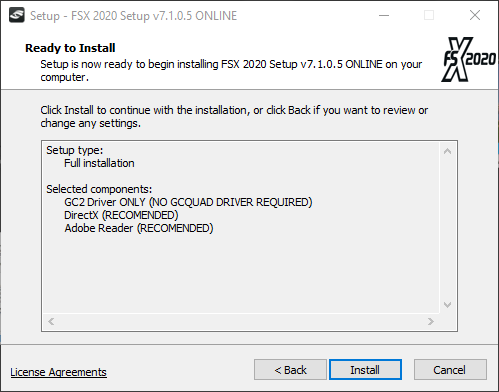
7. Select all components for installation (all selected by default) and select Next. Now click Install.
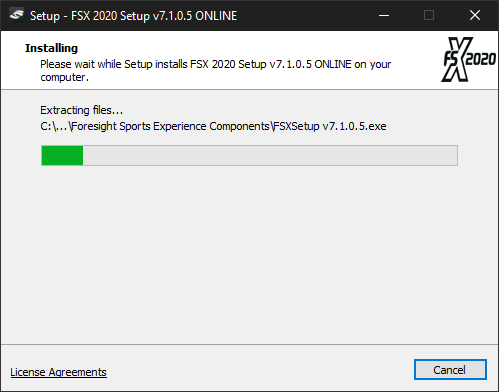
8. Extract FSX 2020 Setup Files.
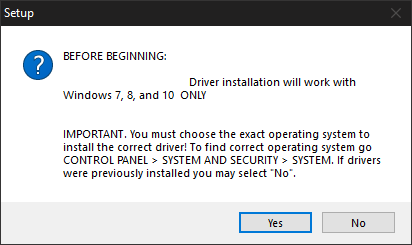
9. Review the Warning (please ensure your computer meets the minimum system requirements for FSX 2020, these are listed at the top of the page) and select Yes.
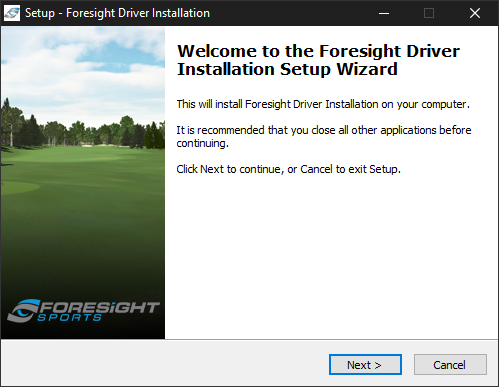
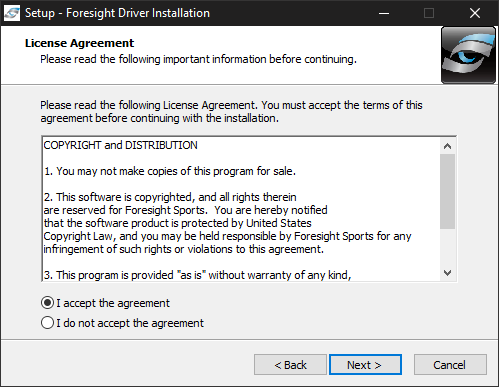
10. The Foresight Driver Installation will now begin, click Next, Read and/or accept the License Agreement and click Next.
11. Select Windows 64 Bit version (required for FSX 2020 Users, refer to FSX system requirements) and click Next. Install the Foresight Driver by selecting Install.
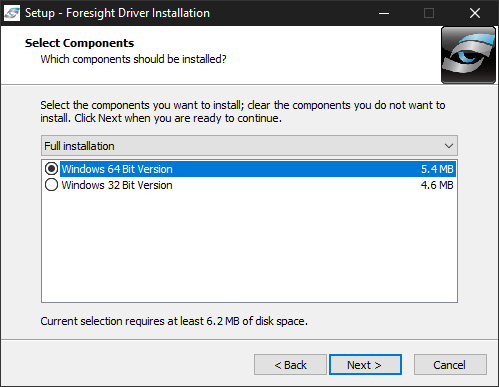
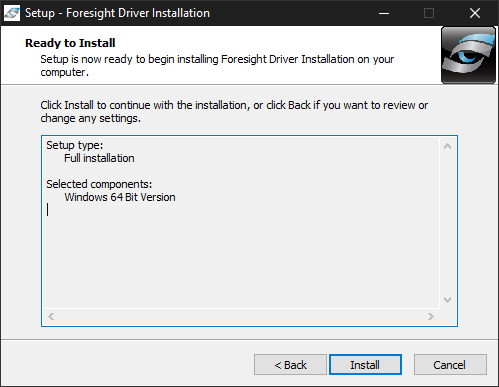
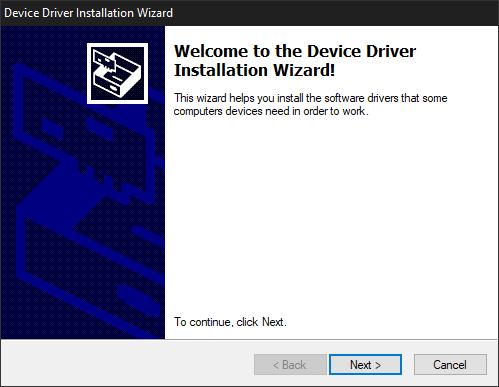
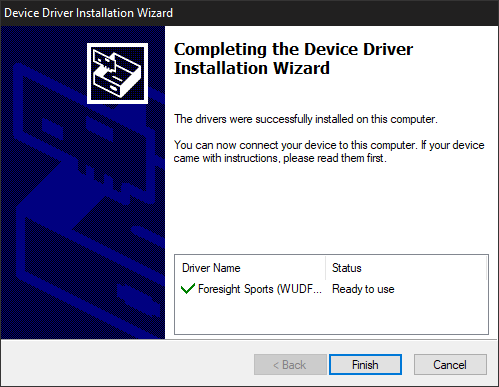
12. The Device Driver Installation Wizard will now begin, select Next. Allow the progress to complete and select Finish to close. Next, select Finish to proceed with the FSX 2020 installation.
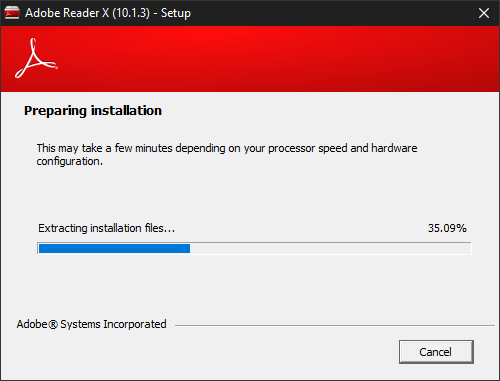
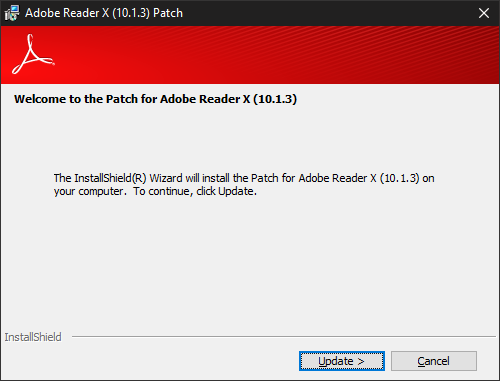
13. The Adobe Reader X installer will begin, extract the necessary installation files and select Update/Install. Allow Adobe Reader X setup to complete and click Finish.
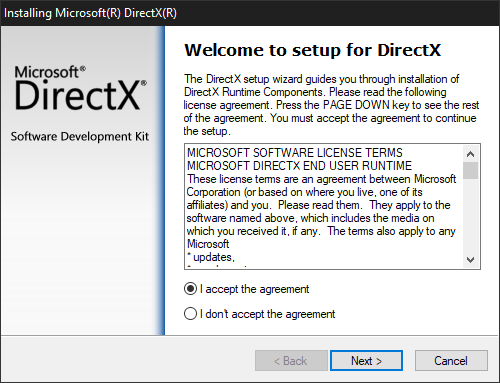
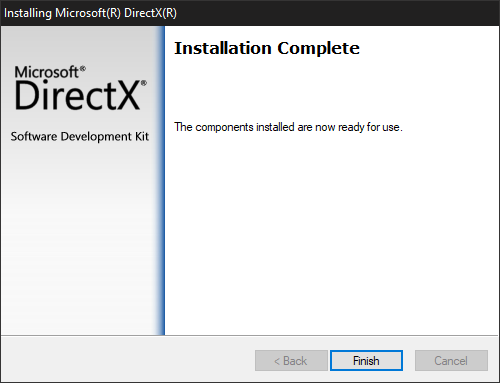
14. The Direct X installer will begin, Read and/or accept the agreement and click Next.
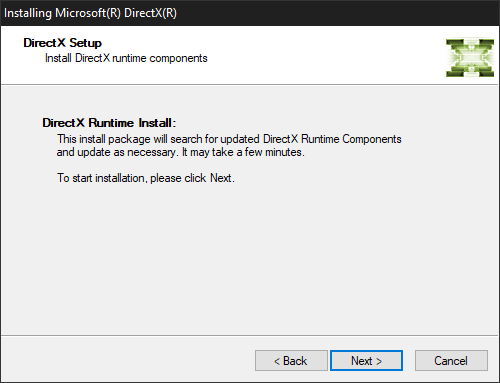
15. The Direct X Setup (this may take a few minutes) and click Next. Allow the installation progress to complete and select Finish.
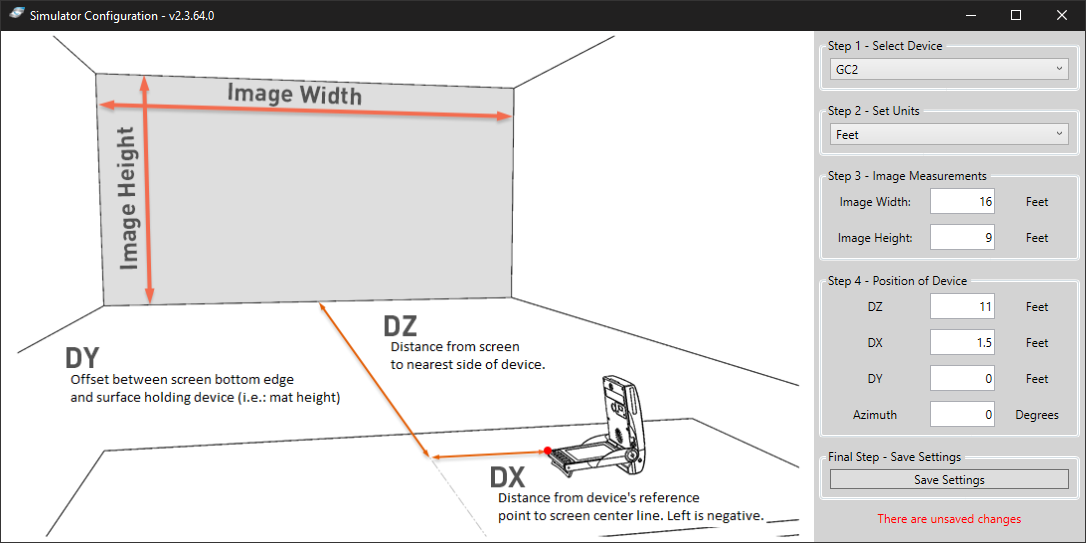
16. The Simulator Configuration tool will appear. If hitting into a net return, please enter in the following values pictured in this guide. If hitting into an Impact Screen, a 20ft tape measure is required to provide measurements for the Simulator Configuration Tool. Follow and complete each step outlined in the Simulator Configuration tool, click Save Settings and select the X in the top right-hand corner to proceed with the FSX 2020 installation.
- Customer Note: DY & Azimuth should be left at 0 unless instructed by a Foresight Sports representative.
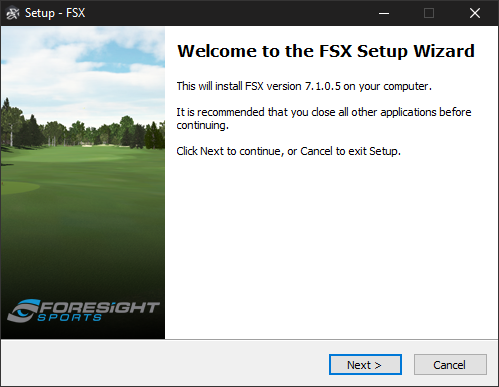
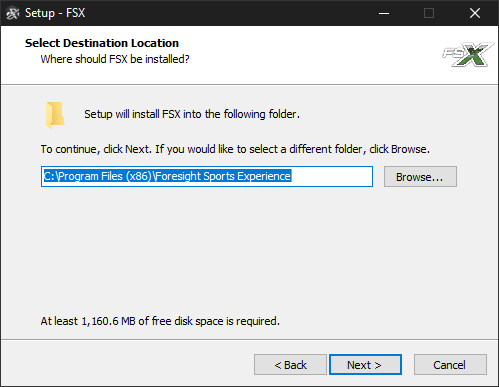
17. The FSX Setup Wizard will begin, click Next to select an installation Destination Folder and then click Next to proceed. (Default installation folder recommended to ensure easy installation of FSX courses later in this guide).
18. The option to select additional tasks to perform will now be available. Select the option of your preference and click Next.
- Customer Note: *Highly Recommended* select the Install of Visual C++ 2017 Redistributable (Required for FSX 2020 operation).
- Customer Note: only check the corresponding Camera drivers if you have purchased a corresponding 3rd party high-speed camera.
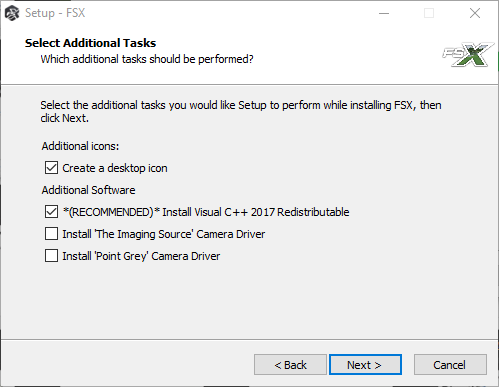
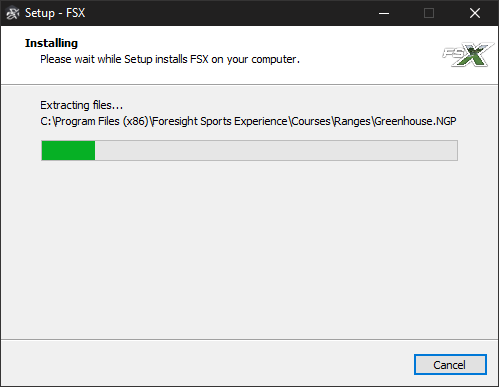
19. Allow the FSX 2020 installer to extract and install all the necessary files. Click Finish when completed.
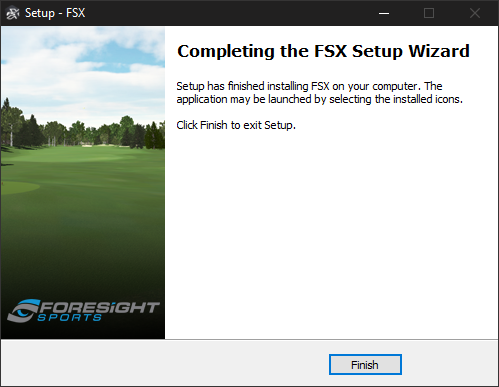
20. Congratulations your FSX 2020 installation is now complete, click Finish.
Related Articles
FSX Pro Setup Guide for Windows and iPad
Setting Up FSX Pro: A Complete Guide for Windows and iPad Users If you're looking to set up FSX Pro for your golf performance analysis, you're in the right place. Whether you're using a Windows PC or an iPad, getting started with FSX Pro involves a ...FSX 2020 - The basics
Foresight FSX 2020 is a premium golf simulator software developed by Foresight Sports, designed to deliver a highly realistic and immersive golfing experience. The software can only be activated on one computer at a time. If you’d like to use your ...FSX Pro iPhone iPad Setup Guide
Connecting FSX Pro to Your iPhone and iPad: A Complete Guide If you're trying to pair your FSX Pro with your iPhone or iPad and receiving a message stating there is no subscription linked to your device, you're not alone. Many users encounter this ...Fix for FSX Pro Freezing/Crashing: Update, Drivers, Settings
Outdated Software Version: The Hidden Cause of Freezing One of the most critical factors behind persistent freezing in FSX Pro is running an outdated version of the software. This means it no longer connects to Foresight’s servers for license ...How do I update FSX Play?
To download and install the latest version of FSX Play, please visit the support website: FSX Play Support website FSX Play Download & Installation Guide